Set up an Outlook email to use encrypted communication
To set up Microsoft Outlook for one of these versions 2010/2013/2016, follow these steps:
- The first step
-
Open Microsoft Outlook
-
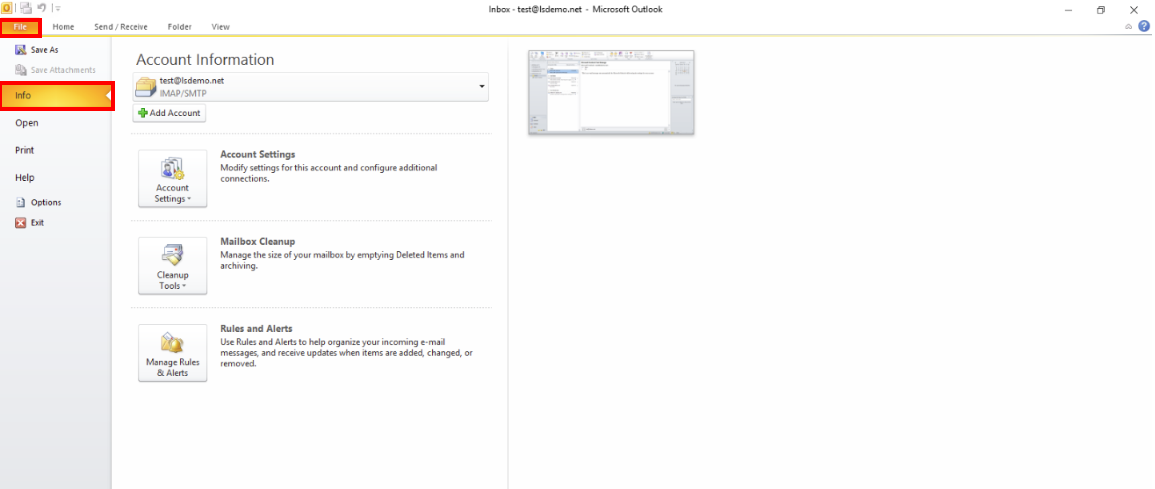
Then, from File click on info
- The second step:
-
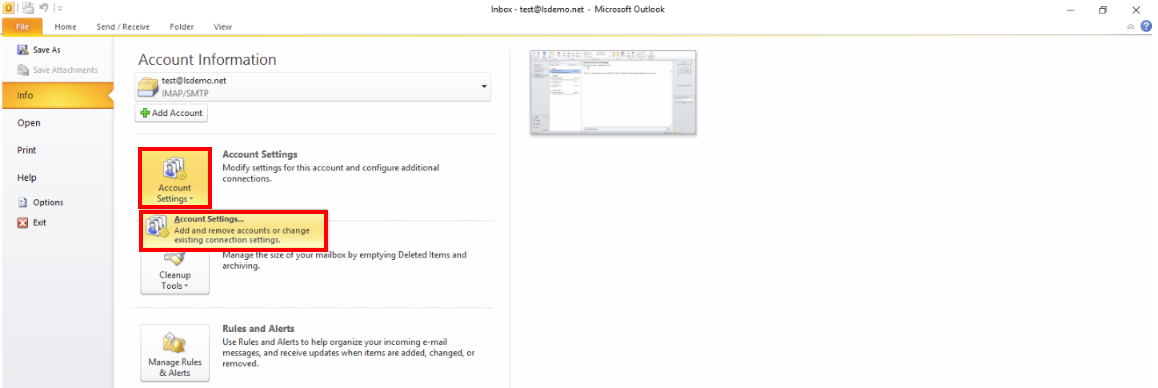
Under Account Information click on Account Settings
-
Then choose Account Settings from the menu
- The third step:
-
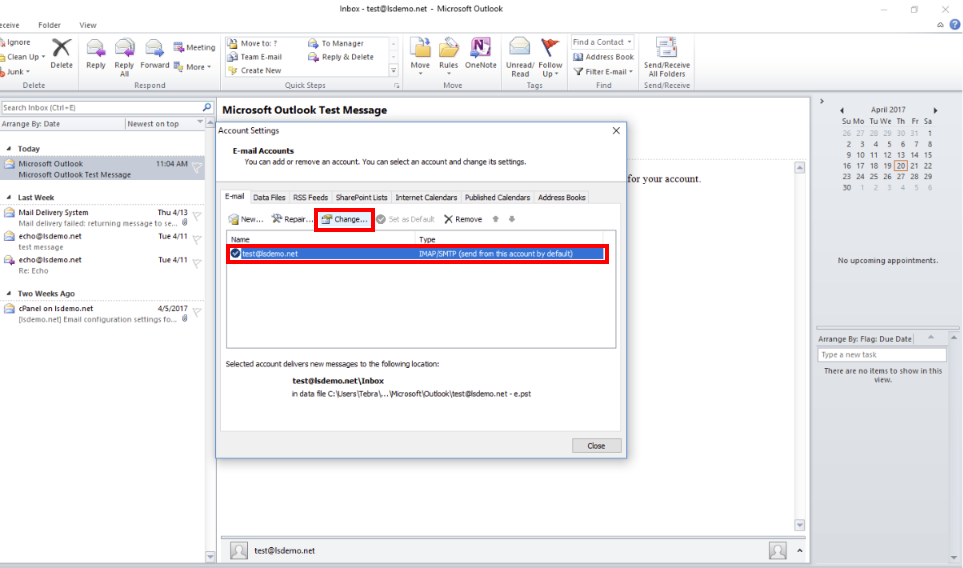
Choose your email account from the list ( For Example: test@lsdemo.net )
-
click on Change
- The fourth step:
-
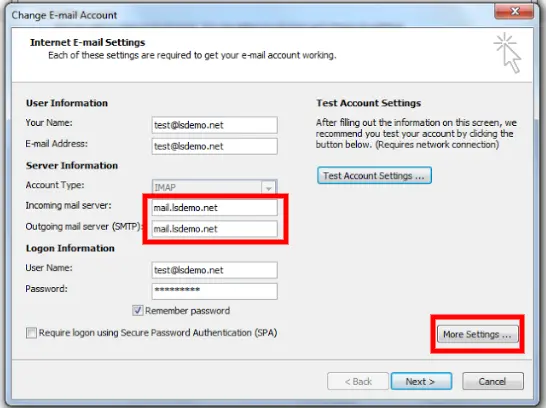
Ensure that the address of the (Incoming) and (Outgoing) e-mail server is written in this format
-
<mail.<yourdomain
-
-
Click More Settings for more settings
Step Five:
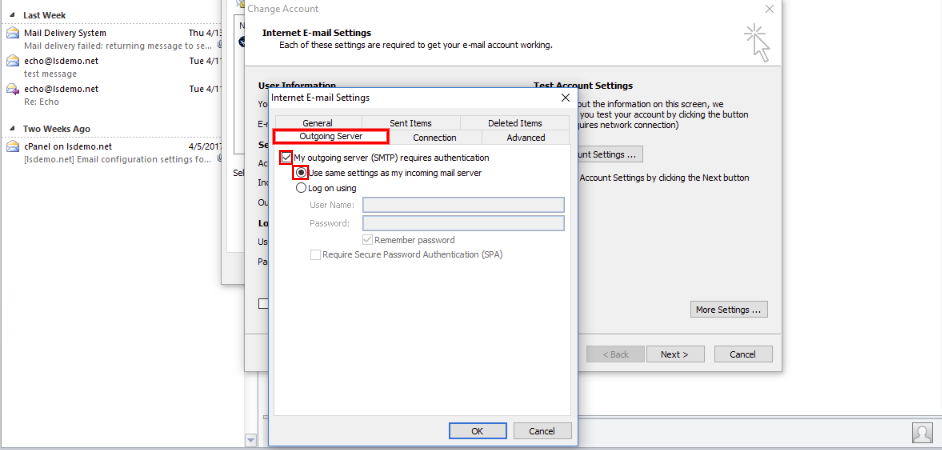
Make sure that the My outgoing server (SMTP) box requires authentication
choose Outgoing Server
Make sure to choose a box My outgoing server (SMTP) requires authentication
choose Use same settings as my incoming mail server
Step Six:
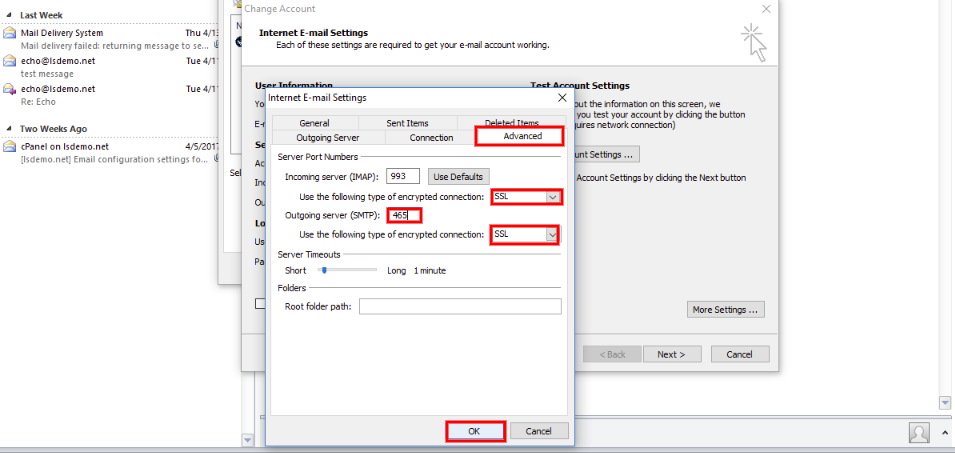
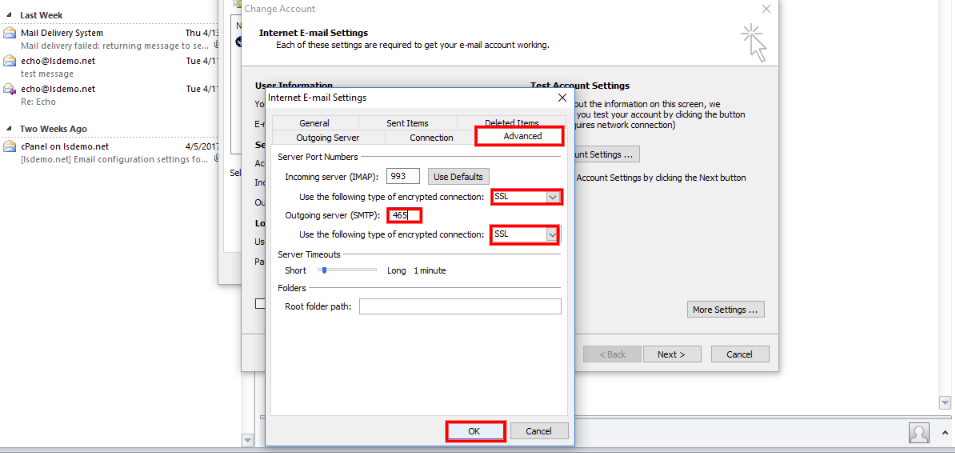
- choose Advanced
-
Configure the (Incoming server) as follows
- choose SSL from the list for connection protection type .
- Change the (Incoming server) port to:
- 993 If you are using IMAP
- 995 if you are using the POP3 protocol
- Configure the(Outgoing server) as follows
- choose SSL from the list for connection protection type .
- change the Outgoing server (SMTP) port to 465
- click on OK
Step Seven:
-
click on Test Account Settings
-
Wait for setup to test success
-
If the test was successful, click Close then Finish