Explanation of installing any script by pressing a button from the C-Pen via Softaculous
Previously talked about the advantages of Softaculous , the lesson can be read here.
We will talk about how to install any script in a minute. We will apply an example to WordPress. By analogy, you can install any other script like an explanation.
1-Login to the cPanel
2- 2- We head to the block named program and click on Softaculous install aap as shown in the attached image:

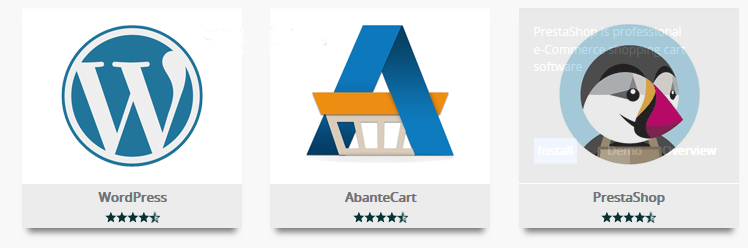
From below there is a custom block called Softaculous install aap from which we choose the script we want to install as shown in the attached image:

3-بعد اختيار الاسكربت المراد تنصيبه والضغط علي install
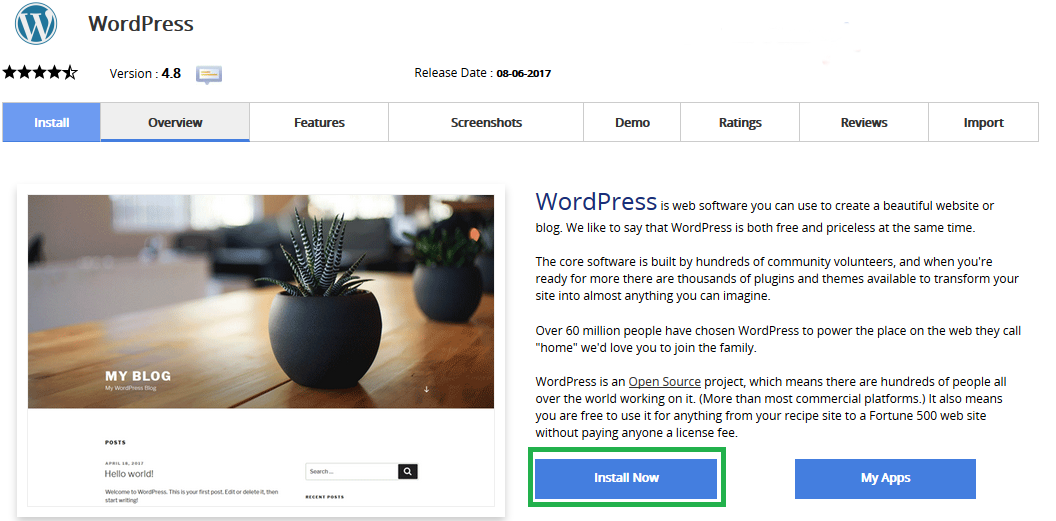
4-3- After choosing the script to install, click on install :
5- After pressing install, a page will appear that contains data for the installation.Softaculous
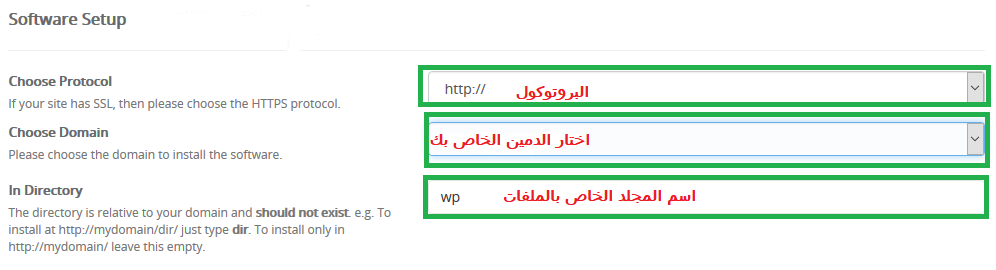
has filled it in by default, you can modify or leave it as it is. One of the most important of these data is: - The protocol that you want to use when requesting the site, preferably to leave the default protocol http
except in the case that Your site uses SSL technology, in this case it is preferable to choose https
- Domain name if you have more than one domain name.
- The name of the folder which Softaculous will automatically create and install the application on, thus the application will be displayed at mysite.com/dir or left field blank and the application will be installed directly in public_html file and the application will be displayed directly at mysite.com.
As shown in the picture: